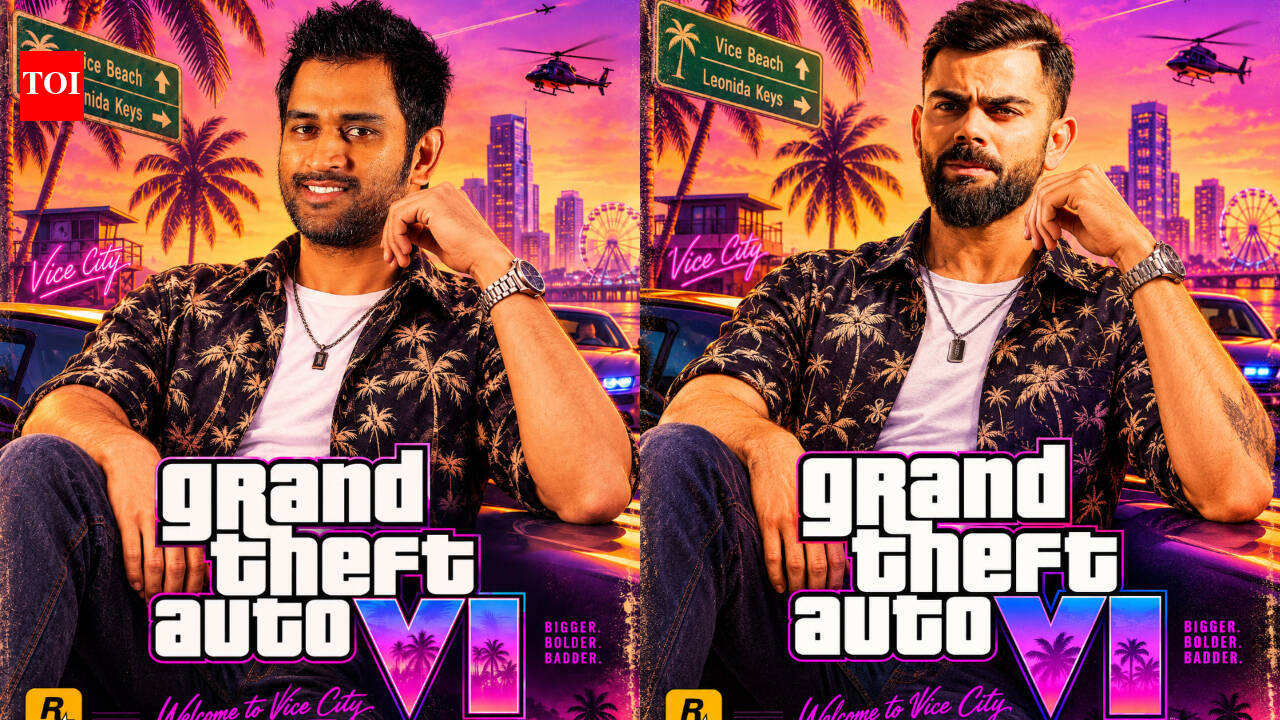
Google Gemini is one of the fastest ways to restyle an existing photo without losing your likeness.
1. Open Google Gemini
Head to the Gemini website or launch the mobile app, sign in with your Google account, and open a new chat with image creation enabled.
2. Upload a clear photo
Tap the attachment icon and pick a portrait from your camera roll or computer. Front-facing shots in even lighting work best—avoid sunglasses or heavy shadows so the model has clear facial features to preserve.
3. Paste a detailed GTA-style prompt
Rather than typing a vague one-liner, spell out the lighting, framing, and art direction. Copy and paste this prompt alongside your photo:
GTA-style AI image prompt:
“Turn the uploaded photograph into a high-quality open-world crime video game poster inspired by the visual aesthetic of Grand Theft Auto. Keep the person’s facial features, hairstyle, expression and overall identity recognisable without beautifying or altering their face. Give the image a bold illustrated appearance with sharp outlines, vibrant colours, dramatic cinematic lighting and a detailed Vice City-inspired coastal backdrop. Include luxury sports cars, palm trees, neon-lit urban streets and a glowing sunset sky. Use a stylish video game poster composition with rich textures and no text or logos.”
Want a different vibe? Swap the sunset beach strip for a rainy downtown alley, a rooftop helipad, or a classic wanted-poster frame.
4. Generate and fine-tune
Send the prompt and wait a few seconds for Gemini to render the image.
If the first pass drifts too far from your face or feels too dark, reply directly in the chat with a quick adjustment. For example:
“Keep my facial features closer to the original photo and brighten the pink and orange sunset tones.”
5. Save and post
Download the finished image straight to your device. It works cleanly as a WhatsApp DP, an Instagram carousel slide, or a lock-screen wallpaper.